

How to protect personal information from hackers on the Internet?
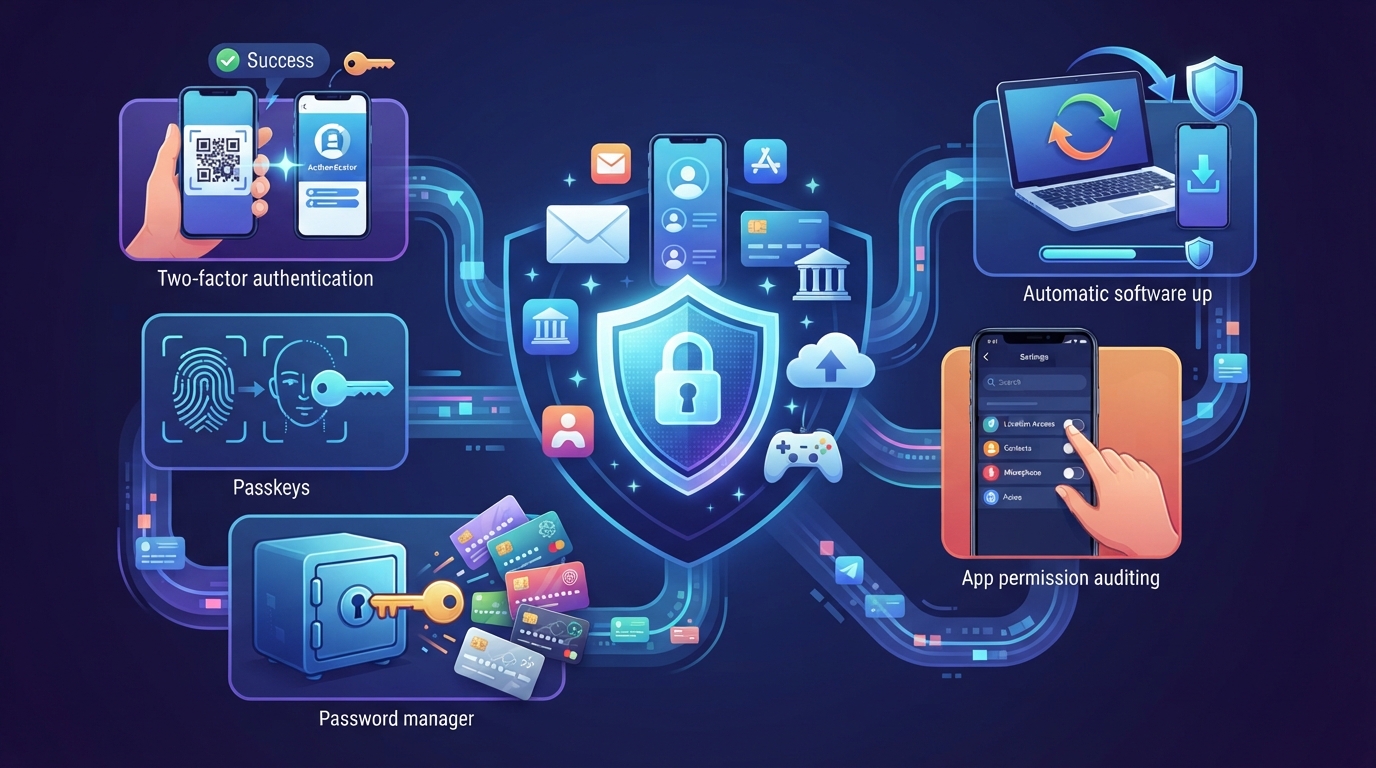
How to protect your personal information from cyberattacks on the Internet?
Email, banking applications, social networks and even gaming accounts can be serious targets for cybercriminals. Leaked passwords or excessive permissions granted to applications can put personal information, funds and accounts at risk. With the following simple measures, you can more reliably protect your personal information on the Internet.
**What information is at risk on the Internet?**
* **Email.** This is the center of your entire digital life. Passwords for other profiles are reset via email, and checks, tickets and business correspondence are stored in the mail archive.
* **iOS and Android accounts.** The main accounts on a smartphone retain geolocation, contact list, personal photos and access to system backups of all devices.
* **Public services and banking applications.** These are the highest risk points. A compromised profile on a public services portal or bank can lead to a loan being issued in your name, fake credentials being created, and your money being stolen instantly.
* **Social networks, messengers, and cloud storage.** This is a breeding ground for blackmail and extortion. Archived conversations and media files are stored here. Attackers use them to attack your acquaintances and create deepfakes based on artificial intelligence.
* **Game profiles and subscription services.** An often overlooked vulnerability. A compromised account can be used to steal valuable game items or withdraw real money from cards linked to it for purchases made by others.
* **Mobile applications and programs.** Programs with excessive permissions collect geolocation in the background, and fake programs may contain built-in spyware.
**How to protect personal information?**
You don't have to panic by changing passwords every week. To prevent most threats, it's enough to spend half an hour setting up the necessary tools once and start using them.
**1. Enable two-factor authentication**
Even the most secure password can sooner or later be leaked along with the database of a service. Two-factor authentication serves to protect against such situations. When it is enabled, in addition to the password, a one-time confirmation code from your other device is required to log in to your account.
**What to do:**
* Install Google Authenticator, Yandex ID, or another authenticator application on your smartphone.
* Go to the security settings of mail, banks, messengers, "State Services" and other important services and enable the "Two-step authentication", 2FA, or "Login with confirmation" function.
* Select the “Authenticator app” as a security option, then scan the QR code that appears using the installed application or, if you are setting everything up from your smartphone, enter the code manually.
* Keep the backup recovery codes that the site provides in a safe place. If you lose your phone, these codes will be the only easy way to access your account without contacting technical support.
* Choose SMS verification only in cases where authenticator apps are not supported. Messages from operators can be intercepted, but even this option is better than not having a second level of protection at all.
**2. Switch to access keys**
Traditional passwords are gradually giving way to Passkeys technology - access keys. They use your biometric data instead of complex character combinations. Access to the system is confirmed by a fingerprint, face scan or screen unlock PIN code. Such a key cannot be stolen through phishing or database leaks: only the public part of it is stored on the servers, which is useless to hackers.
Access keys are reliably protected by end-to-end encryption within your ecosystem (Apple, Google or Yandex). Two-factor authentication in your main account guarantees that unauthorized persons will not be able to access your key ring in the cloud.
**What to do:**
* When you enter the site, agree to the offer to create a passkey or activate this function in the security settings of your account.
* Allow the key to be saved in Apple Keychain, Google Passwords or another password manager you use.
* After that, the keys will be automatically copied to your other gadgets. And when you buy a new smartphone, you will not need to manually re-enter each site.
**3. Use a password manager**
It’s impossible to remember dozens of complex and unique combinations, and using the same password everywhere risks losing all your accounts. In such cases, password managers come to the rescue. They generate long and random combinations for each site, encrypt them and automatically enter them when logging in. In addition, they also protect against phishing: the manager will not enter the password on a fake site.
**What to do:**
* Choose a suitable service. Built-in solutions such as Google Password Manager or Apple’s Passwords are suitable for working within a single system. If you use Windows, Android and iOS at the same time, it is better to choose the cross-platform Bitwarden or KeePassXC.
* Come up with one complex master password. Make it long and memorable, because it will open your entire password vault.
* Entrust the manager with autofilling passwords and create complex combinations for new sites through it.
* Remember the risks. If you forget your master password, you will not be able to access the entire repository. Due to full encryption, it is very difficult, if not impossible, to recover it. Therefore, during the initial setup, do not forget to save the recovery key or backup codes in a safe place.
**4. Audit application permissions**
Games and applications on your smartphone love to ask for more than necessary permissions to geolocation, contacts, microphone, and gallery. Often this is necessary to collect advertising analytics, but if the developer account is hacked or the company is sold to other owners, your personal data can be leaked along with the entire database. Therefore, it is useful to periodically check the permissions.
**What to do:**
* Open the “Privacy” or “Application permissions” section in the smartphone settings.
* Restrict the use of geolocation. Switch it to “Only when using the application” mode and disable precise coordinates for services that only need to know your city.
* Change full access to the gallery to limited access, so that the application can only see the photos you have manually specified.
* Remove unnecessary permissions from utilities. The calculator does not need your contacts, and a simple game does not need a microphone.
**5. Enable automatic software updates**
Developers do not release updates only for new features. The main task of new versions is to eliminate vulnerabilities that hackers use to gain access to devices. Security updates should be installed as soon as possible, because hackers use these gaps for mass attacks.
**What to do:**
* Enable automatic installation of system updates in the smartphone and computer settings.
* Allow automatic updates of applications in the App Store or Google Play.
* Reboot your device immediately when the system prompts you to install an important patch, don't delay.